How To Connect Your Shopify Store
Connecting your Shopify store to AgoraExchange lets you:
- Keep stock in step in both directions for the listings you link — when one sells, the other side's quantity updates automatically.
- Import products from Shopify — tag a product in Shopify and a draft copy appears in AgoraExchange for you to review and publish. See Importing products from Shopify below.
Agora never reads your orders or customers — the connection only ever uses your products, inventory, and locations.
Before you start, you'll need:
- Access to your store's Shopify admin as the store owner, or as staff with the App development › Develop permission — collaborator accounts can't do this; ask the store owner.
- An AgoraExchange seller account with a package, a verified ID and approval — until then, Connect to Shopify doesn't appear in your seller menu.
- About 10 minutes
Step 1 — Open the Dev Dashboard from your store
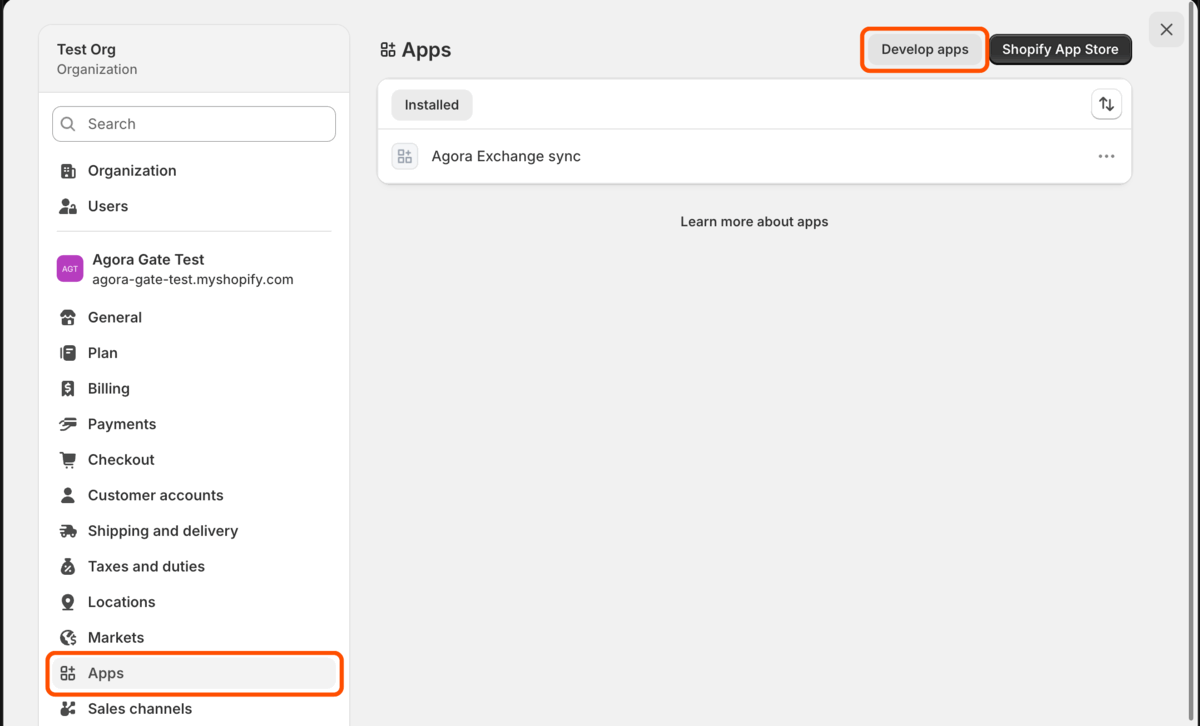
- Log in to your store's Shopify admin and click Settings at the bottom of the left menu.
- Click Apps.
- Click Develop apps at the top right.
- On the App development page, click Build apps in Dev Dashboard. The Dev Dashboard opens.
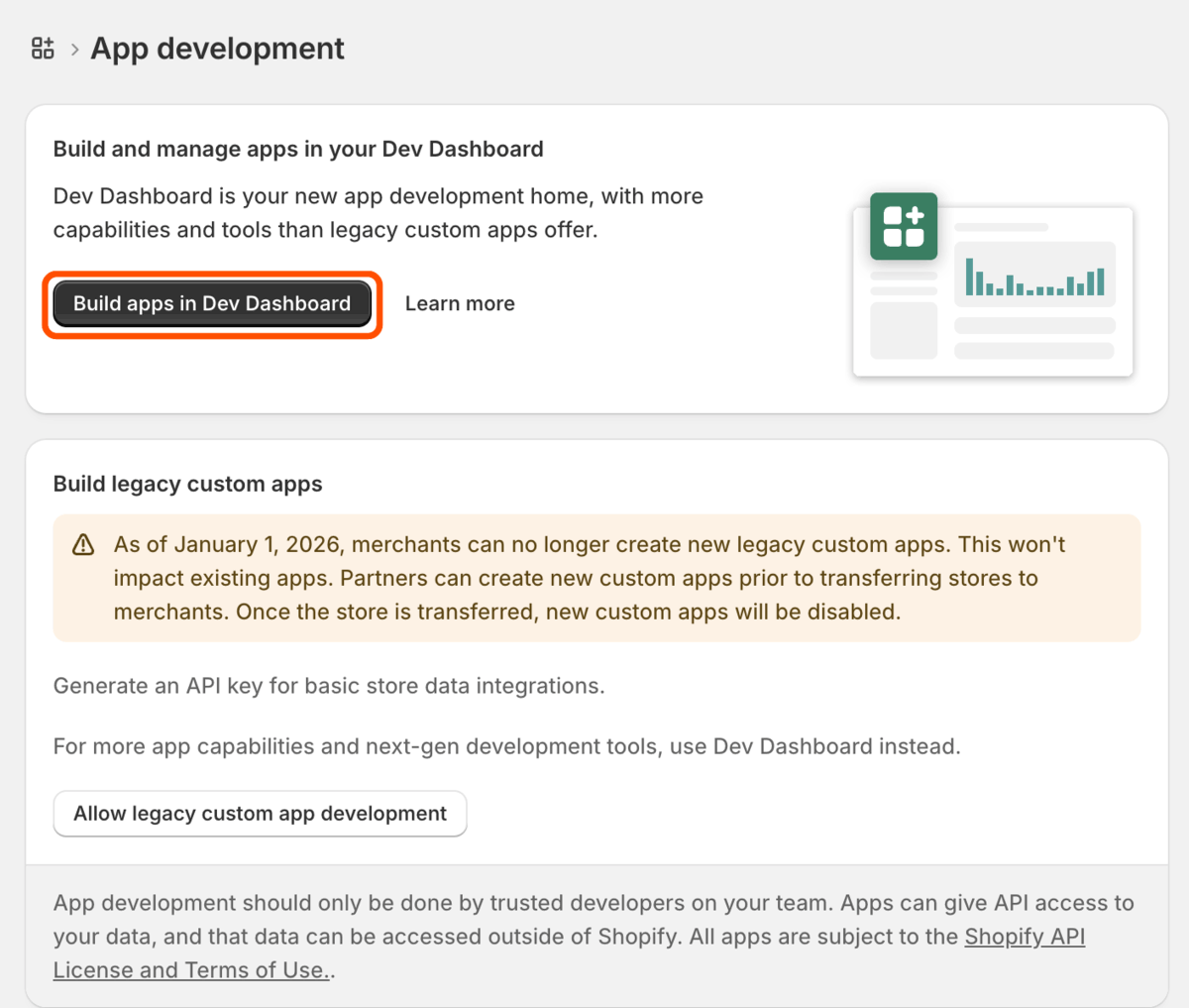
If this is your first time there, Shopify may ask you to name an organization before continuing. Any name is fine; it doesn't need to match your store name.
Step 2 — Create the app
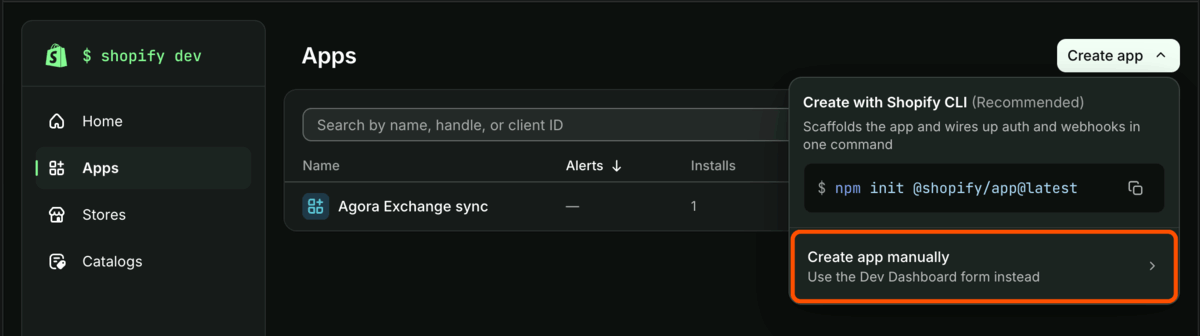
- In the Dev Dashboard, click Apps in the left menu, then click Create app at the top right.
- Choose Create app manually. Don't use Create with Shopify CLI; that option is for developers writing their own app.
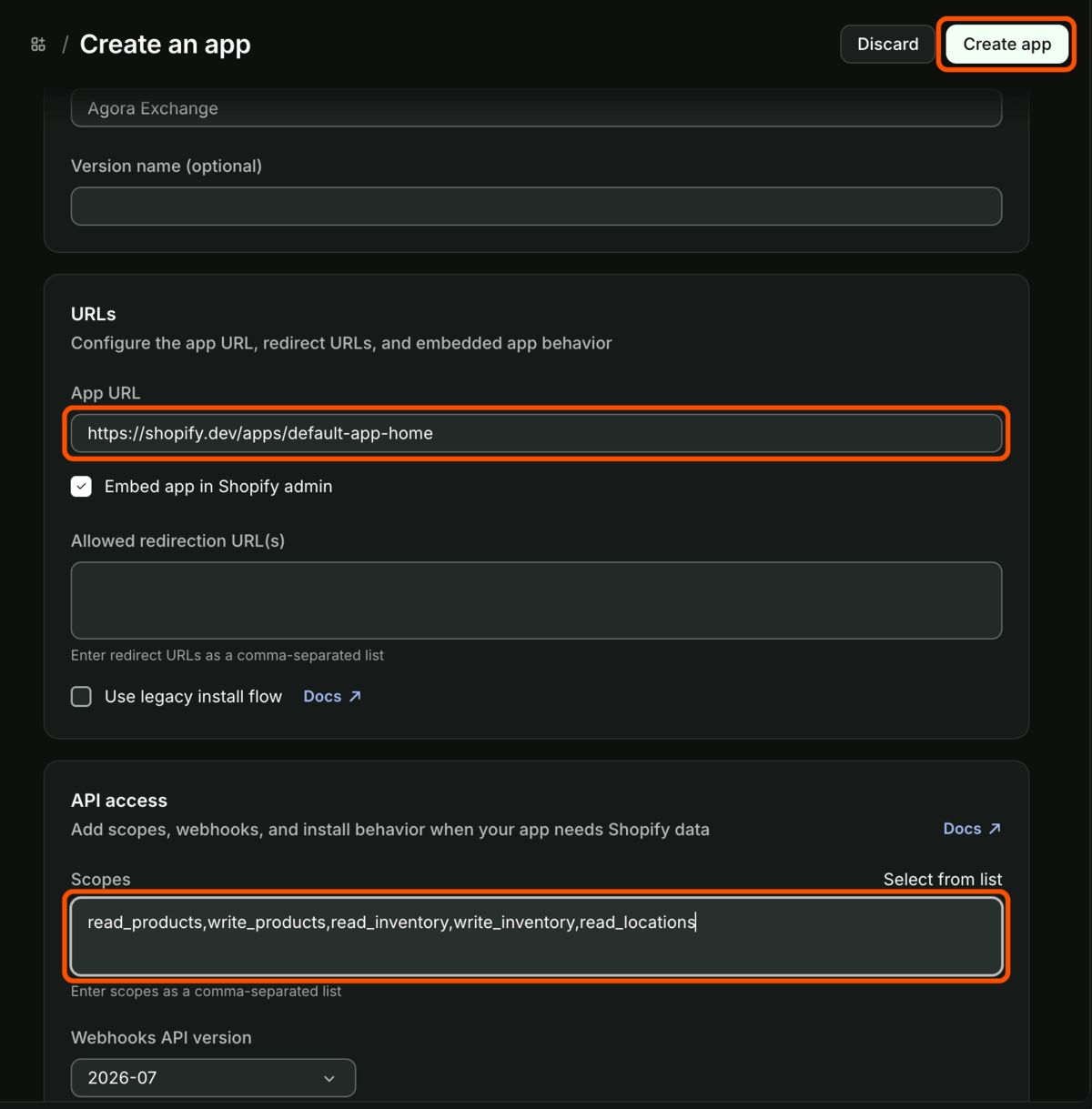
Fill in the Create an app form:
- App name: any name you'll recognise, for example Agora Exchange.
- App URL: Shopify fills this in with
https://example.com. Replace it withhttps://shopify.dev/apps/default-app-home, Shopify's standard page for apps that have no screens of their own. AgoraExchange never uses this address. - Leave Version name, Embed app in Shopify admin, Allowed redirection URL(s) and Use legacy install flow as they are.
- Under API access, paste this exact line into Scopes:
read_products,write_products,read_inventory,write_inventory,read_locations
- Check that Webhooks API version is 2026-07 (it's usually already selected), then click Create app at the top right.
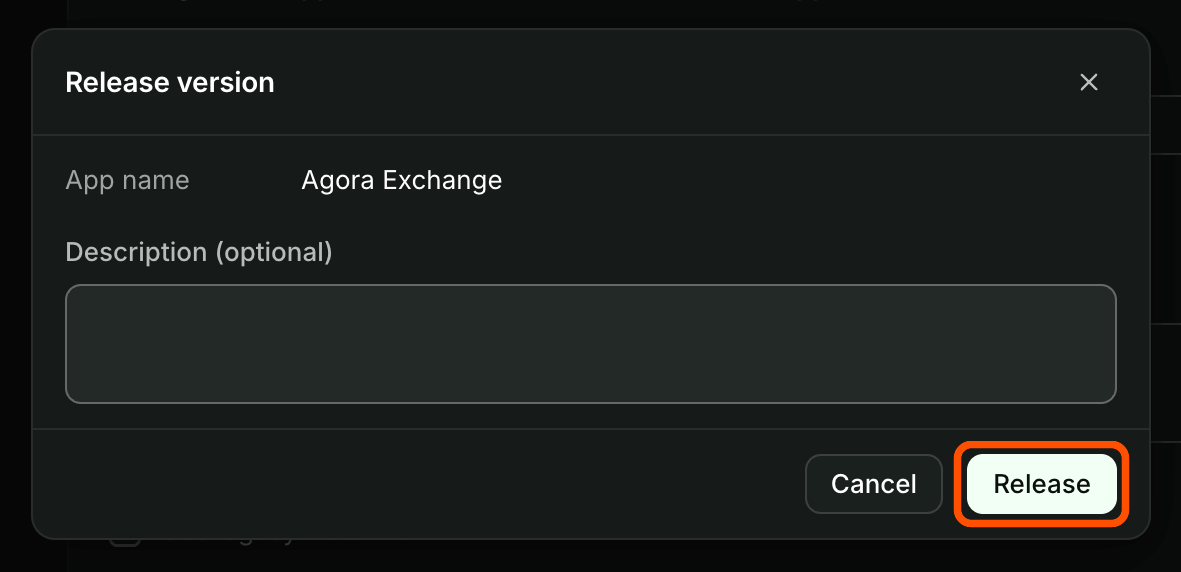
- In the Release version window, leave the description empty and click Release. Shopify then shows the app's Versions page.
Step 3 — Install it on your store
- Click Apps in the Dev Dashboard's left menu.
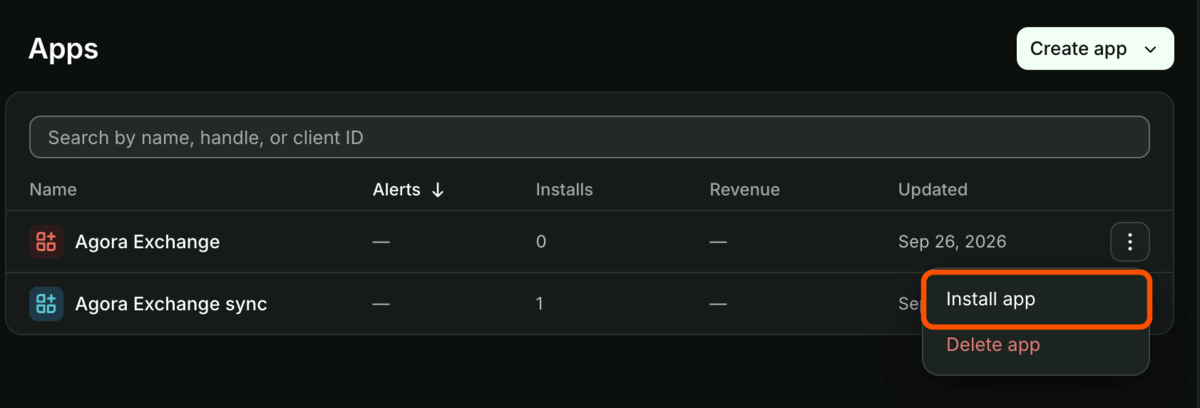
- On your new app's row, click the ⋮ button at the far right and choose Install app. Take care not to click Delete app just below it.
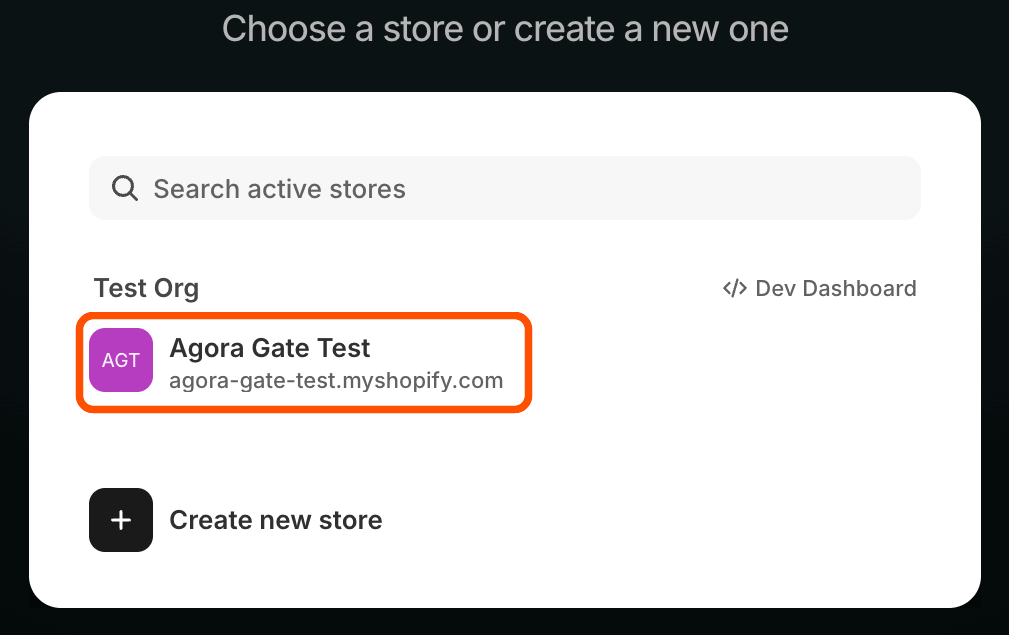
- Choose your store.
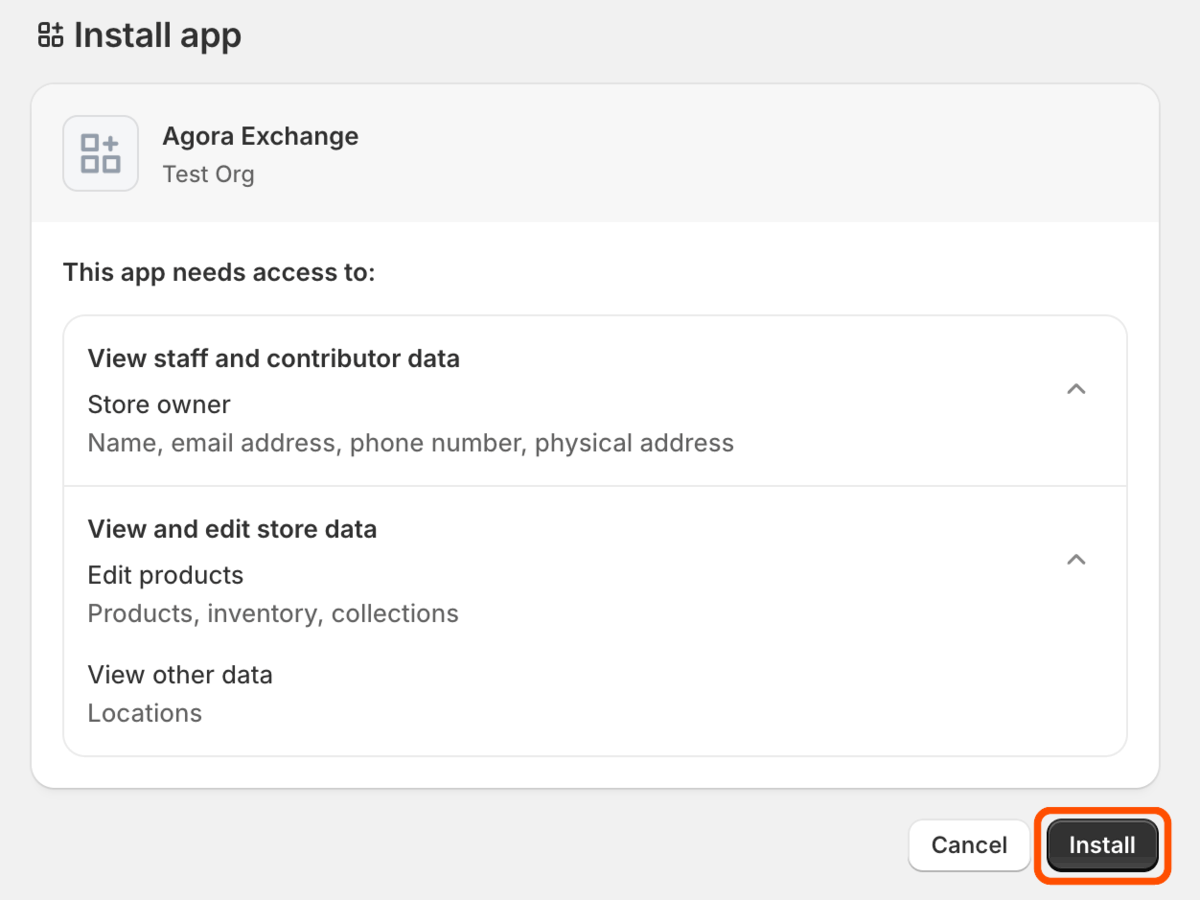
- Shopify shows what the app can access. The Store owner line (name, email address, phone number, physical address) appears for every app a store installs, whatever it asks for. AgoraExchange only ever uses your products, inventory, and locations.
- Click Install.
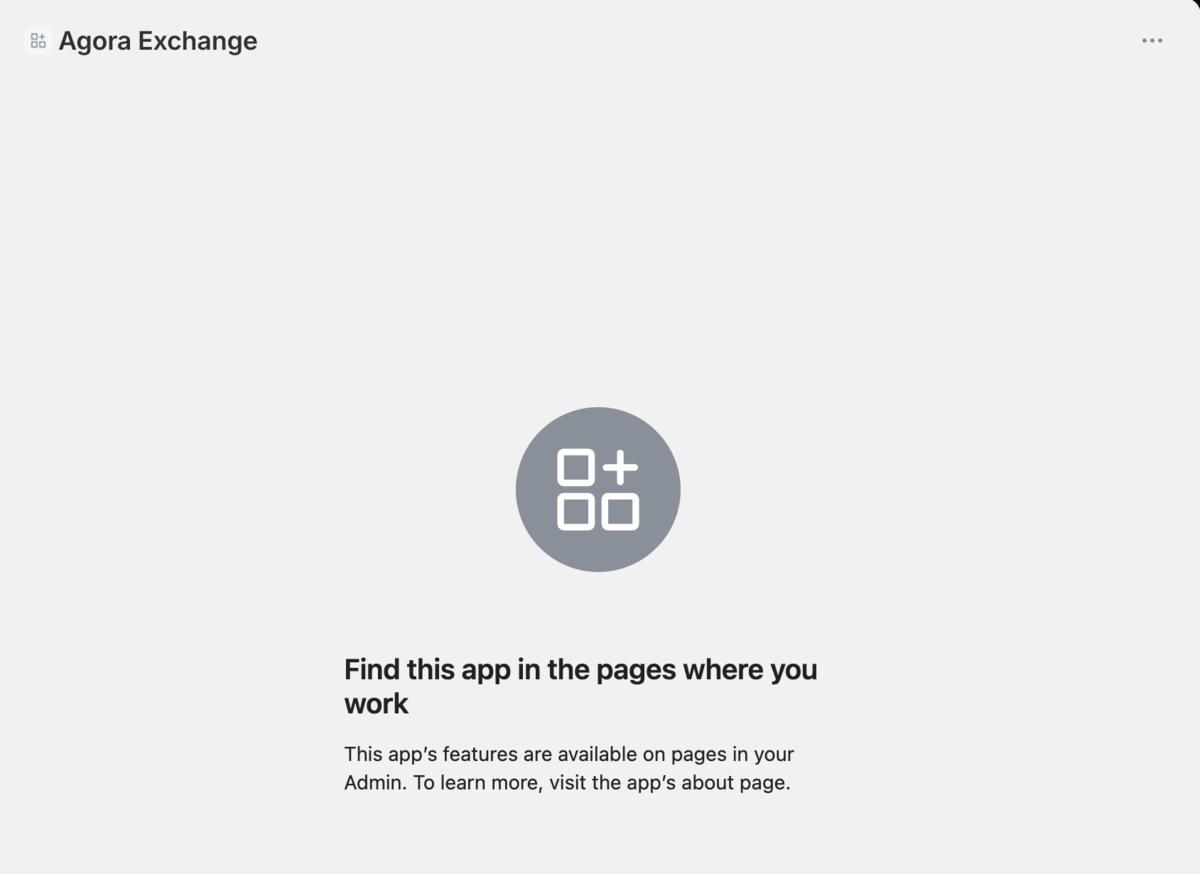
Shopify then opens the app inside your admin, on a page that says Find this app in the pages where you work. That's expected, and there's nothing to do there. Go back to the Dev Dashboard for the last step.
Step 4 — Copy the credentials into AgoraExchange
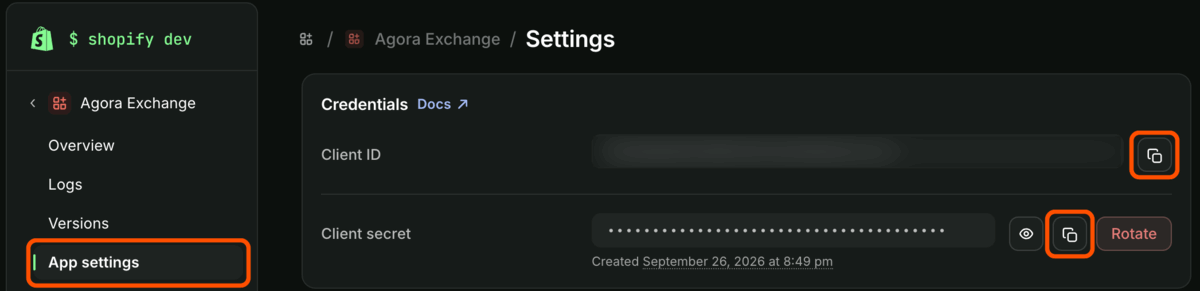
- In the Dev Dashboard, open your app and click App settings in the left menu.
- Under Credentials, click the copy icon next to Client ID, and the copy icon next to Client secret. The secret stays hidden; you don't need to reveal it. Don't click Rotate, which replaces the secret.
- In AgoraExchange, click Connect to Shopify in your seller menu.
- In Shop Domain, enter your store's
.myshopify.comaddress, for exampleyour-store.myshopify.com. Shopify shows it under your store's name at the top of Settings. Use this address even if your store has its own domain.

- Paste the Client ID and the Client Secret.
- Click Test connection.
- Under Fulfillment Location, choose the Shopify location whose stock you want AgoraExchange to keep in step, then click Save & Connect.
What happens next
The Connect to Shopify page now shows Connected to Shopify. From here you can:
- Link listings you already sell in both places. Open Shopify Listing Links in your seller menu and click Link next to a listing. Stock is kept in step only for linked listings.
- Import products from Shopify as new AgoraExchange listings — see below.
The Shopify Sync page in your seller menu shows your linked listings and recent sync activity.
Importing products from Shopify
- In your Shopify admin, open the product, add the tag
agora-import, and click Save. - Within a few seconds, a draft copy appears in AgoraExchange under Listings › Draft Listings. It's already linked, so its stock is kept in step from the start, and AgoraExchange removes the
agora-importtag from the product in Shopify. - Open the draft, go through the checklist below, then click Submit to publish it.
Saving the product after adding the tag is what sends it. A product that was tagged before you connected won't arrive on its own — make a small change to it in Shopify and save it again.
What comes across
- Title and description
- Vendor, as the brand
- Price and compare-at price
- Stock quantity
- Options such as Size, each with its own price and stock
- Weight (AgoraExchange's minimum is 1 lb, so anything lighter is rounded up)
What doesn't come across
- Photos
- Barcodes, SEO settings and collections
- Package dimensions
- Digital files
Before you publish
- Category: every import starts in Uncategorised — choose the category buyers should find it in.
- Photos: add them in AgoraExchange.
- Listing details: check the listing type (physical, digital, handmade or service), the shipping weight and the package dimensions, and correct anything that doesn't match the item. For a digital product, upload its files.
- Returns: imported listings start as not returnable — tick Mark as returnable if you accept returns.
Publishing an imported listing uses one of the listings included in your package, just like a listing you create in AgoraExchange.
After the import
Importing is a one-time copy. Afterwards, only the stock quantity stays in step, in both directions. Later changes to the title, price, description or anything else — made in Shopify or in AgoraExchange — are not copied to the other side, so make them in both places. Deleting a product on one side doesn't delete it on the other.
AgoraExchange removes only the agora-import tag; the product's other tags stay as they are. If the tag is still on the product after its draft has arrived, remove it yourself — stock stays in step without it. To import a product again after deleting its AgoraExchange listing, add the tag back and save the product.
Disconnecting
Disconnecting stops the sync in both directions, and AgoraExchange removes the webhooks (update notifications) it set up on your Shopify store. Your Shopify products, your AgoraExchange listings and all quantities stay as they are, and your links are kept, so you can reconnect later whenever you're ready. Stock changes made while you're disconnected aren't synced, so check your quantities on both sides after you reconnect.
Rotating your secret
You can rotate your client secret at any time from the Dev Dashboard's Credentials screen. After rotating, open Connect to Shopify in AgoraExchange, click Update Connection, paste the new secret, then click Test connection and Save & Connect so the connection keeps working.
Troubleshooting
- Test connection fails: double-check that the Scopes line was pasted exactly and that the app is installed on this store.
- Nothing happens when you click Install app: check your browser's pop-up blocker.
- A tagged product hasn't appeared in Draft Listings: check that the tag reads
agora-importand that you saved the product after adding it. Then look under Recent activity on the Shopify Sync page — if the import was refused, the reason is shown there. Gift cards can't be imported, a product needs a title and a valid price, and your Shopify store must use US dollars. - "Already imported — only stock syncs" under Recent activity: this is a notice, not an error. Each Shopify product is imported only once. AgoraExchange removes the
agora-importtag after an import, but while a product still has it — for example because you added it again, or tagged a product you had already linked on Shopify Listing Links — every change to the product in Shopify, a stock change included, is noted here, at most once a day per product. Your listing and its stock sync aren't affected. To stop the notices, remove the tag in Shopify; stock stays in step without it. - "Import tag not removed" under Recent activity: the product was imported and linked, but AgoraExchange couldn't remove the
agora-importtag from it in Shopify. Remove the tag in Shopify yourself; your listing and its stock sync aren't affected. If the entry mentions thewrite_productsaccess scope, the app was created without it — compare its Scopes with the line in Step 2. - Stock isn't updating: check that the listing is linked on the Shopify Listing Links page, and that the stock is changing at the Shopify location you chose when connecting. If the Shopify Sync page reports a problem with the connection, click Re-check now.